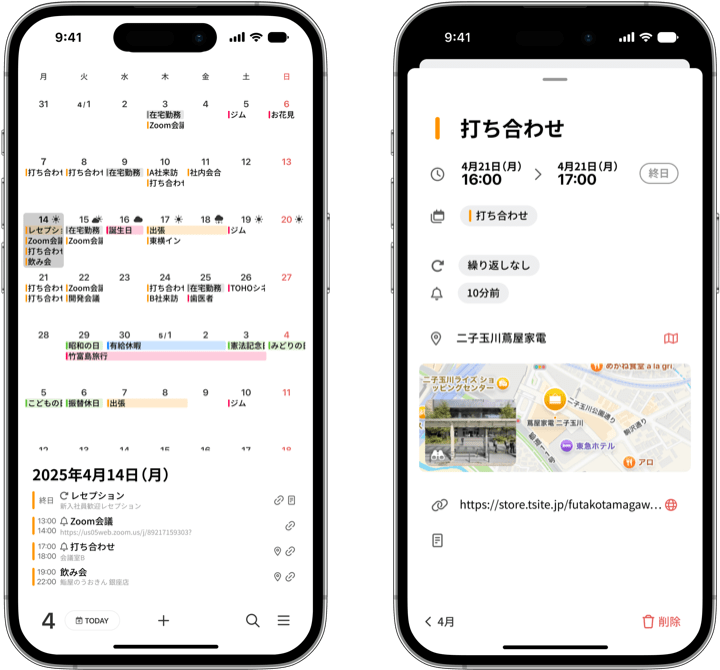
months supports iOS Dynamic Type.
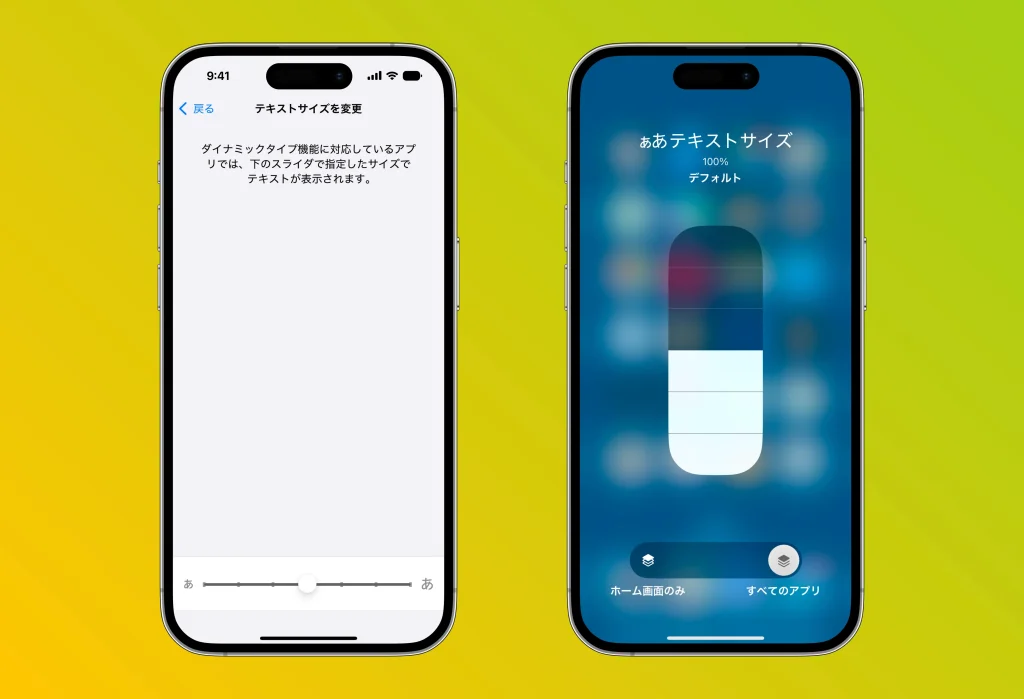
This feature lets you change the font size from your iPhone’s Settings app. The text inside the app automatically adjusts to match your iPhone’s font size setting. Here’s how to change it.
How to change the font size for all apps
1. Open the “Settings” app on your iPhone.
2. Select “Accessibility.”
3. Tap “Display & Text Size” > “Larger Text.”
4. Drag the slider at the bottom left or right to adjust to your preferred size.
* Depending on your iOS version, you can also adjust it from “Settings” > “Display & Brightness” > “Text Size.”
If you need an even larger font size
1. Go to the “Settings” app > “Accessibility” > “Display & Text Size.”
2. Turn on “Larger Text” and adjust with the slider.
Note: Increasing the font size may cause the layout inside the app to break.
How to change the font size for a specific app only
1. Open the “Settings” app.
2. Go to “Accessibility” > “Per-App Settings.”
3. Tap “Add App” and select the app you want.
4. Tap the app you added and adjust the text size with the slider.