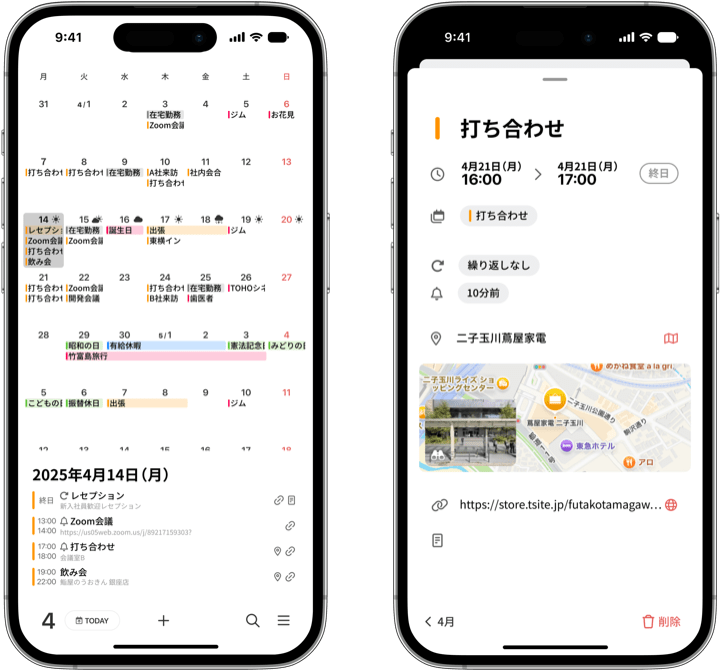
Thank you for using months.
We have just released the new version, ver. 2.0.
This is a major update that makes months among the first calendars ready for the new foldable iPhone, iPhone Duo.
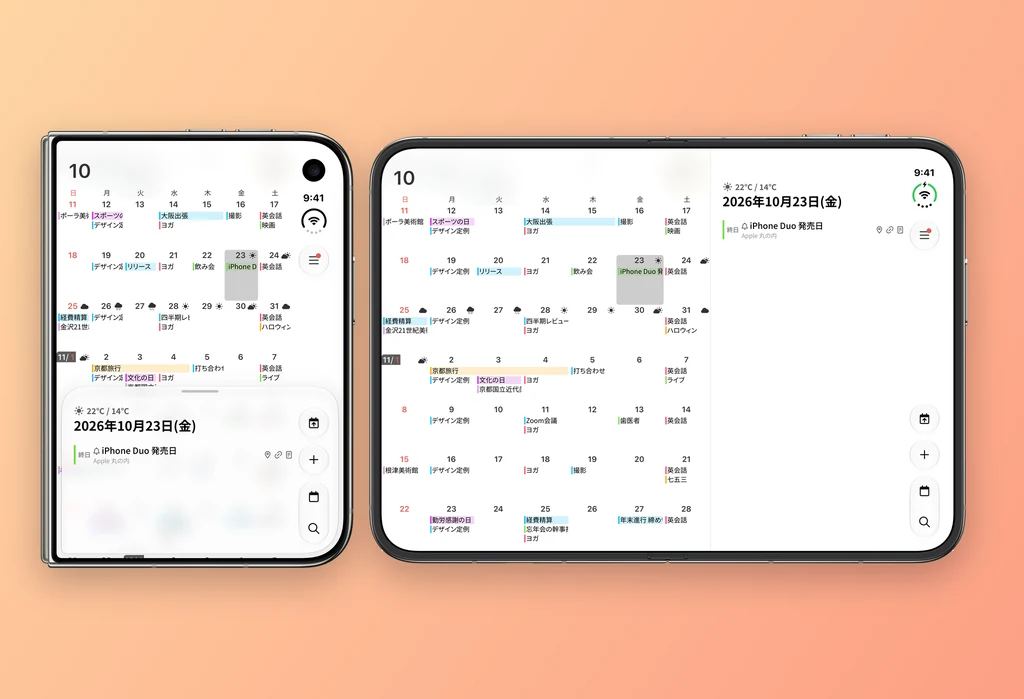
iPhone Duo is an iPhone you can use one-handed like any other when it is closed, and on a large, small-tablet-sized display when it is open.
We reworked the layout of months for each of its forms — the outer display, the large inner display, and also held upright or folded halfway.
However you hold it, months switches automatically to the layout that is easiest to read and use.
One-handed, even when closed
On the outer display, the four buttons — Today, Add, Calendars and Search — now line up in a column on the right side of the screen.
Following the iPhone Duo design guidelines, we gathered the buttons you use most where your thumb naturally reaches, so you can keep the whole calendar in view and operate it with one hand.
Even when you lower the event list sheet, the buttons on the right stay visible. They sit in the same place while you are viewing search results or event details, too.
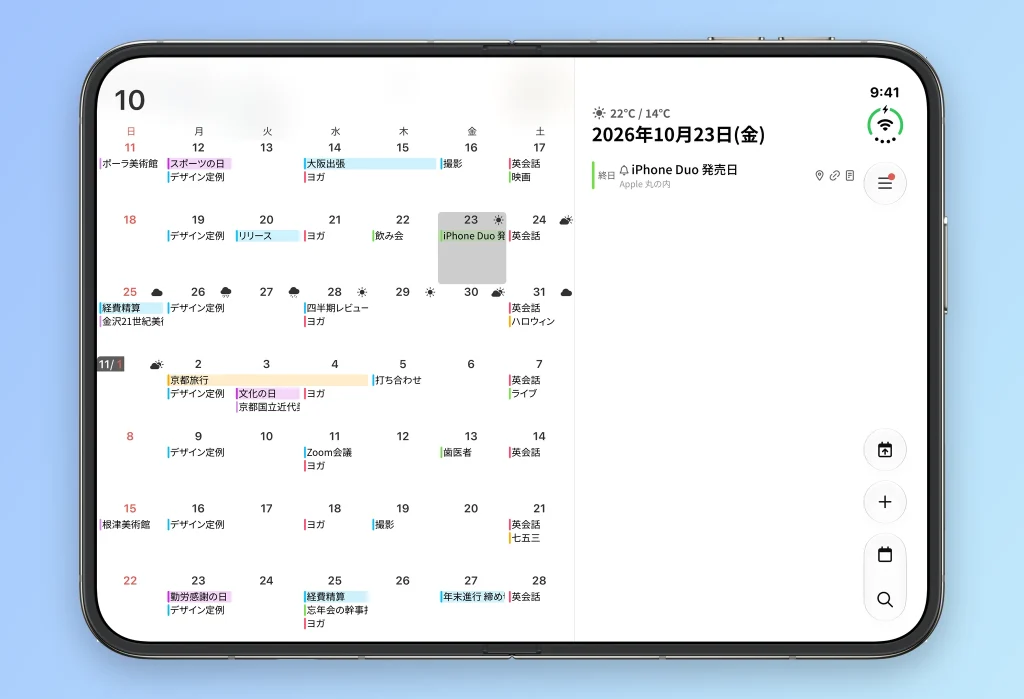
Open it up: calendar and events side by side
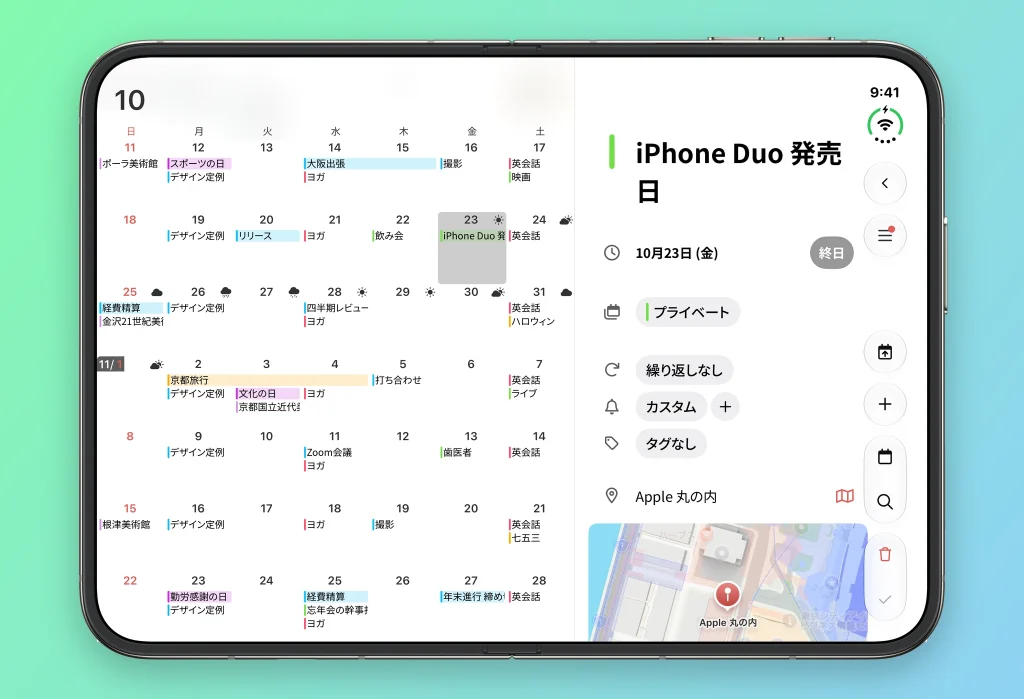
Open iPhone Duo and the calendar spreads across the large inner display.
A full month of the calendar sits on the left, with the event list for the selected day on the right. The calendar cells are wider as well, so you can read more of each event title than before.
See the flow of the month and the plans for the day together on a single screen.
Event details, right next to the calendar
Tap an event and its details open next to the calendar.
The calendar stays in view, so you can check the map, notes or URL while seeing what comes before and after and which days are free.
Adding a new event, searching and settings open on top of the calendar, so you never lose track of which month you were looking at.
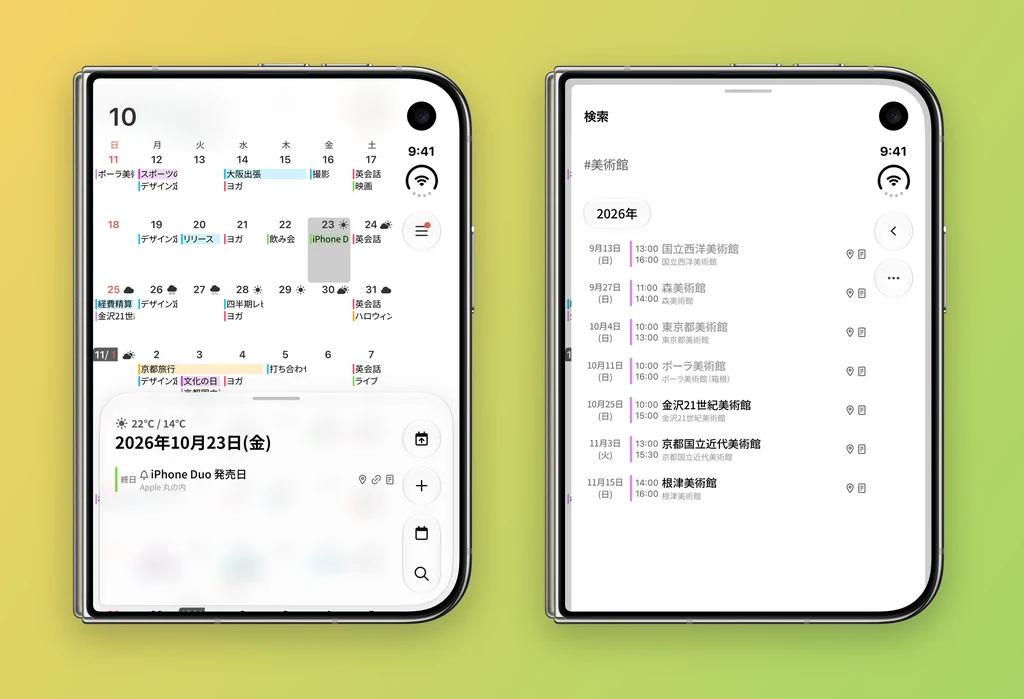
Hold it upright: calendar above, events below
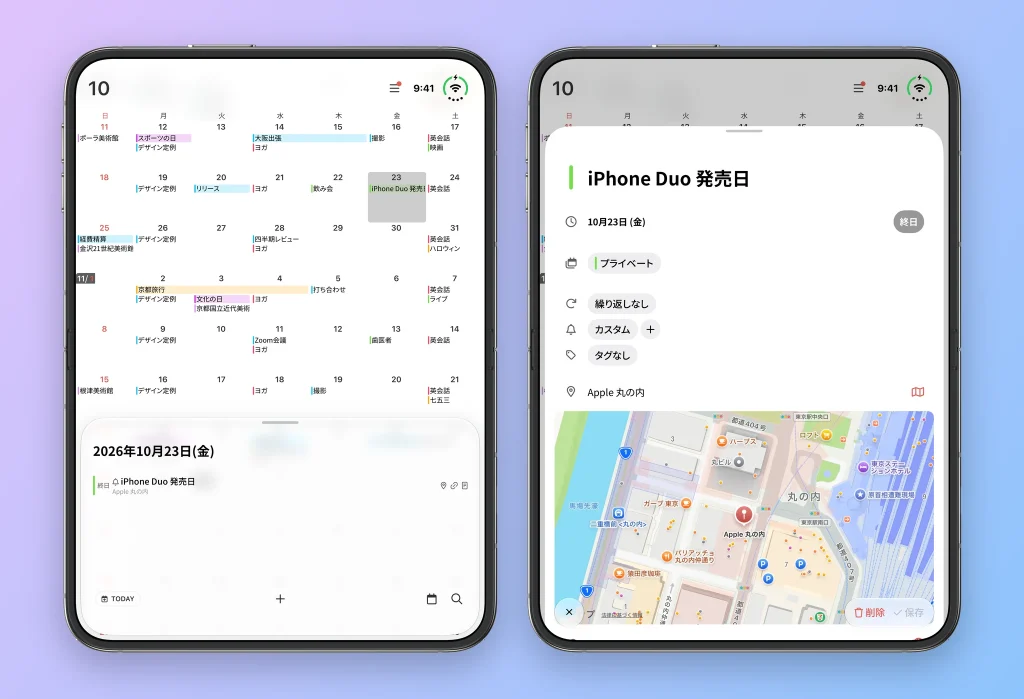
Hold the unfolded display upright and the layout switches to the calendar on top with the event list below.
Making the most of the tall, large display, the calendar shows plenty of weeks ahead, and event details have room to breathe in the lower part of the screen.
Easy to read, even half-folded
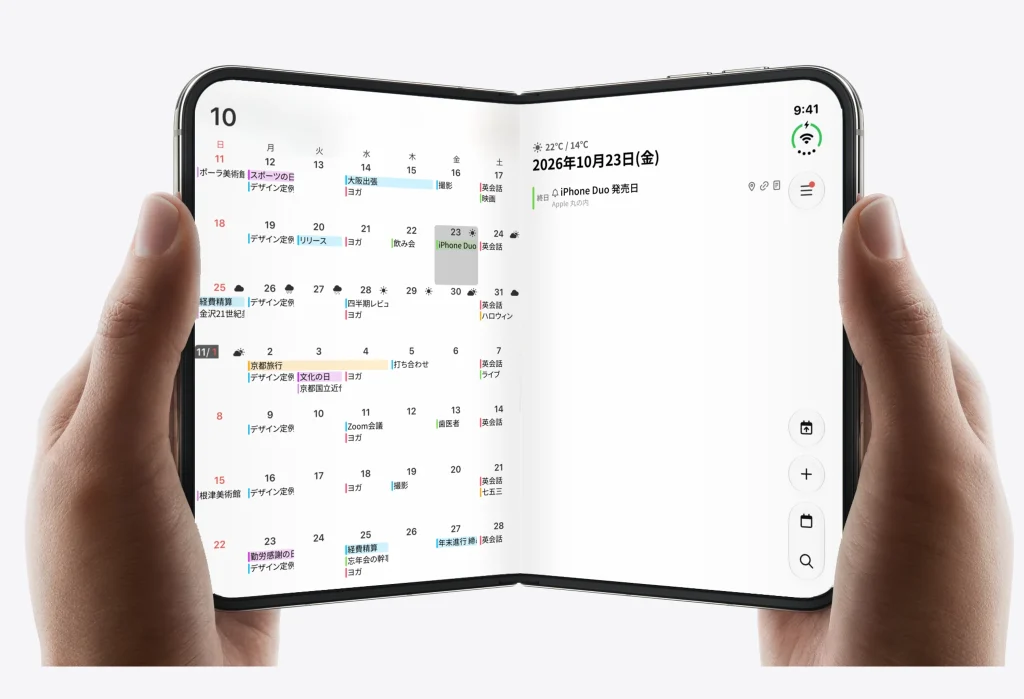
Fold it halfway like a book and the screen splits along the fold.
In landscape, the calendar is on the left and your events on the right. Upright, the calendar is on top and your events below.
No text or buttons fall on the fold, so it stays clean and easy to read whether you are holding it in your hands or checking it on a desk.
Open or closed, pick up right where you left off
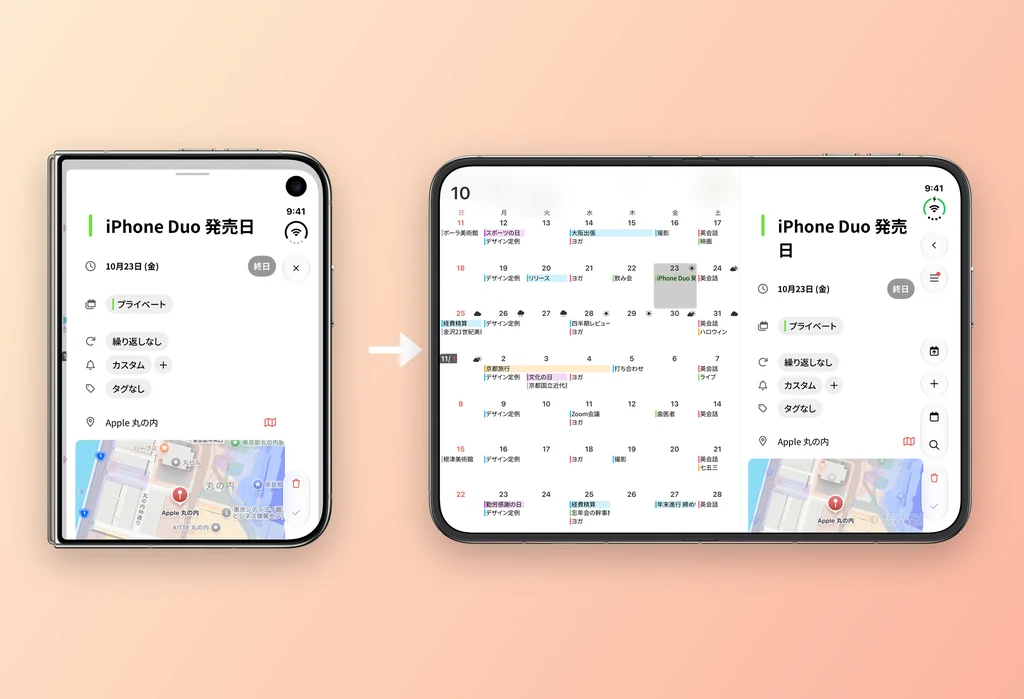
Looking at an event on the closed display and want a bigger view? Just open iPhone Duo.
The month you are viewing and any event, search or setting you have open carry straight over to the large display. The same goes when you close it, or turn the screen.
An event you were in the middle of entering stays intact, so you can carry on from where you were.
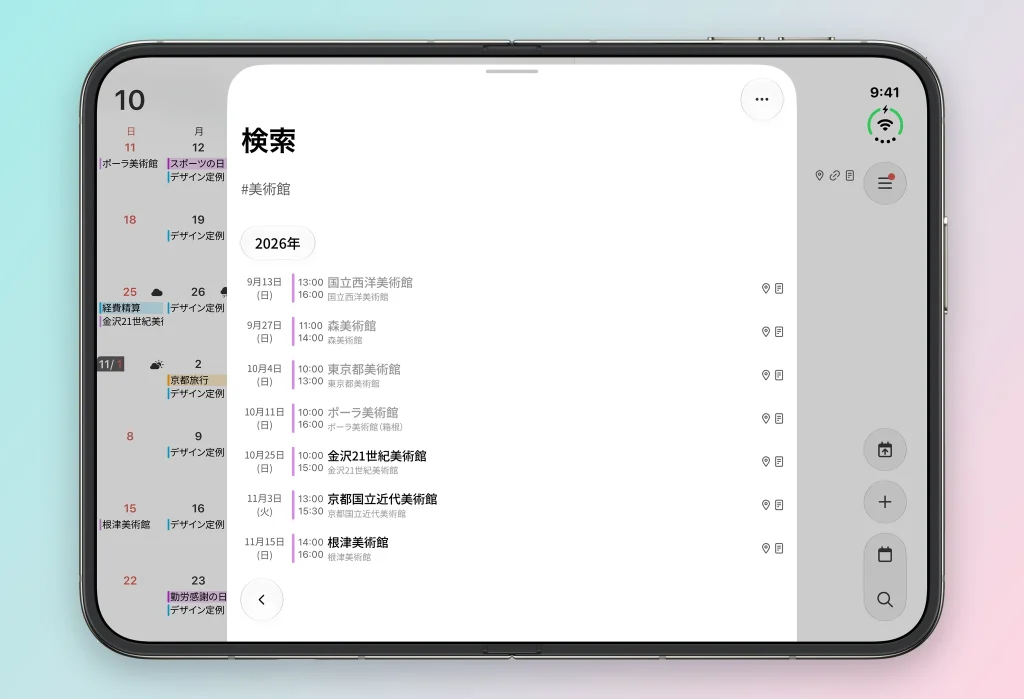
Search results, easier to read on the big screen
Results for a keyword or tag search are also laid out comfortably on the large display.
Even when you look back over a year of events with a tag such as “#museum”, dates, times and places are clear at a glance.
We have also made various small refinements and optimizations.
If you have an iPhone Duo, try it every way you can — closed, open, upright and half-folded.
Of course, months continues to work just as comfortably on the iPhone you already have.
Have feedback or a feature request? We would love to hear from you via Contact in the app.
months keeps evolving to be the calendar you will want to open every day.
If you have not tried months yet, it is free for one week.