In the iPhone “Mail” app, dates and times written within an email are automatically detected, so you can add an event to your calendar with just a tap.
Steps
Open the “Mail” app
Open the email that contains the event you want to register.
Find the date or time
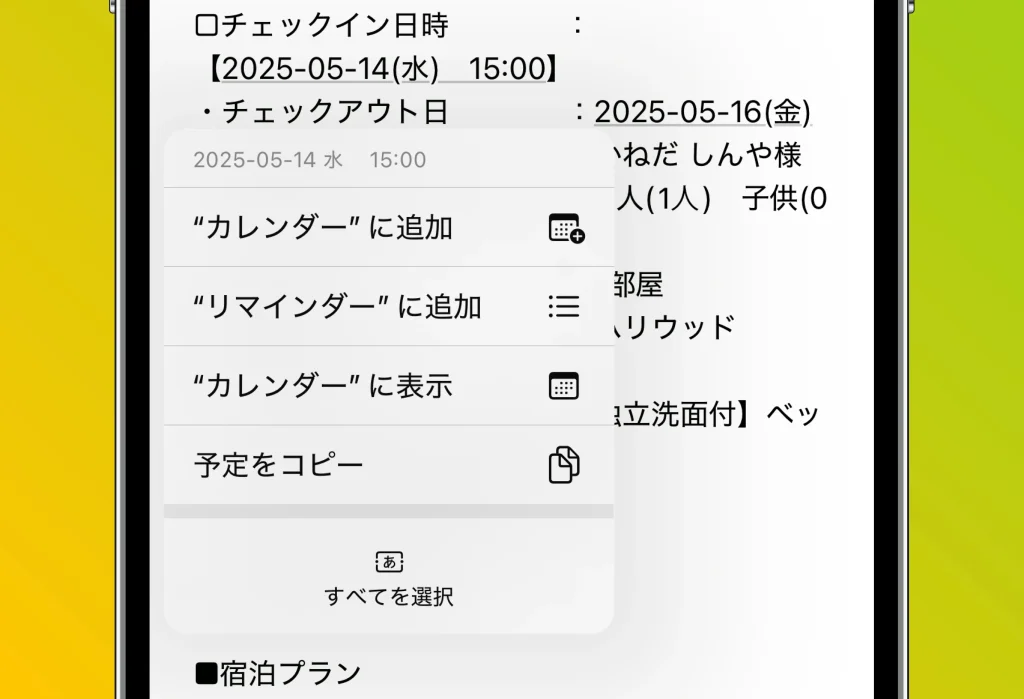
Date and time information such as “March 5, 3:00 PM” or “tomorrow at 10:00” should appear like a link.
Tap the date or time
Tap the underlined date and time, and a menu will appear.
Select “Create Event”
From the options shown, tap “Create Event.”
Review and edit the event details
Edit the event name, location, notification settings, and so on as needed.
Tap “Add” in the top right
Once you’ve reviewed the details, tap “Add” to finish.
With this feature that lets you easily add events to your calendar straight from an email, you’ll never accidentally forget an important meeting or event. Since you can register an event right when you read the email, you save the trouble of opening a calendar app separately, making it highly efficient. Especially for those with busy daily schedules, it’s a powerful ally for time management.
Make the most of this feature to organize and manage your schedule smartly!
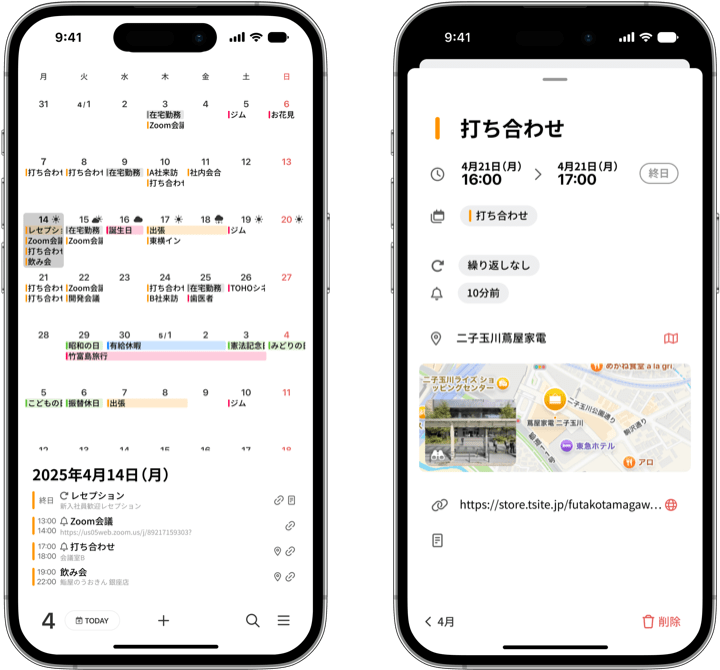
If you want to review all your registered events at a glance, we recommend “months,” a calendar app that lets you grasp both your monthly schedule and daily events at a glance with vertical scrolling.