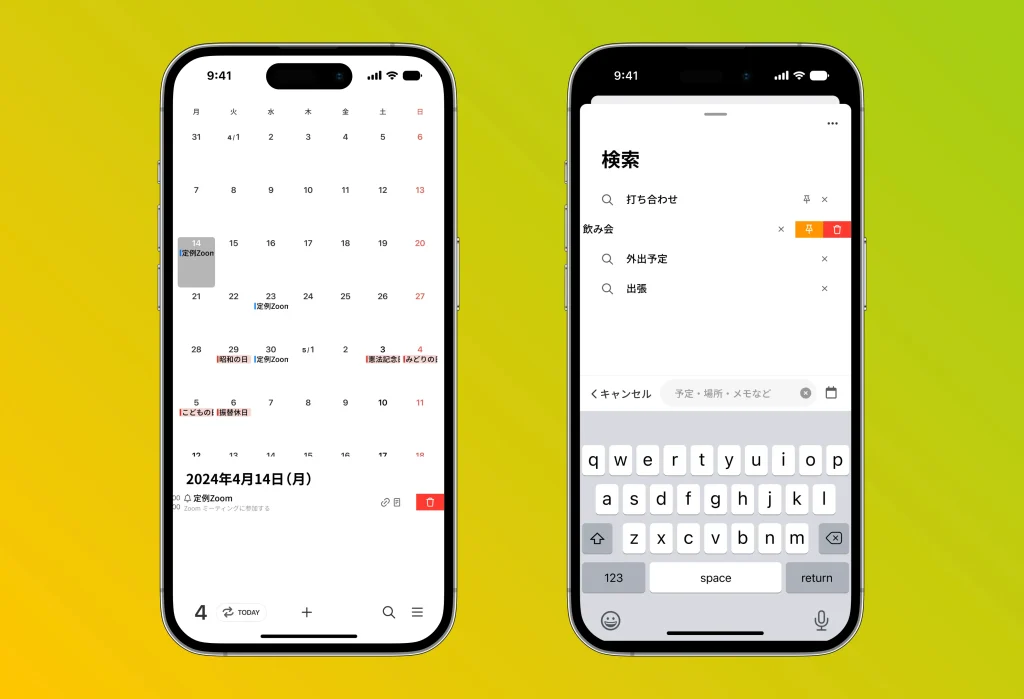
Swiping a schedule item in the lower calendar panel from right to left brings up a “Delete” menu, while doing the same in your search history brings up “Pin” and “Delete” menus.
Swiping schedule items in the lower calendar panel
• Swipe a schedule item shown in the lower panel from right to left to reveal a “Delete” menu.
• This simple gesture lets you quickly delete unwanted events, making your workflow more efficient.
• It saves you the trouble of opening a menu and lets you act intuitively.
Managing your search history
The “Pin” menu:
• Items in your search history have a “Pin” option.
• This feature pins a specific search entry to the top, setting it apart from the rest for convenient access.
• Pinned items remain even when you choose “Clear all search history.”
The “Delete” menu:
• Your search history also has a “Delete” option.
• Selecting and deleting unwanted entries helps you keep your history tidy and more convenient to use.