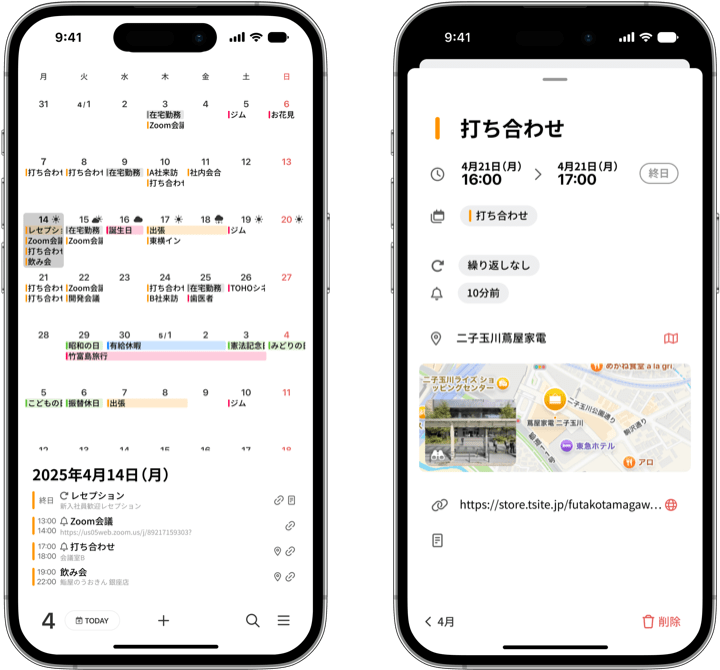
Today, we released months ver 1.5 . This update focuses on enhancements designed to make managing your daily schedule even smoother, and to bring those “oops, I forgot” moments down to zero.
Instead of “search and stop there,” now you can move straight to the next action. Instead of “notify and stop there,” now you can be sure it leads to action. Here are three new features that make months an even more dependable partner.
1. Move, copy, and delete events directly from search results
Until now, the “search” feature was strictly a tool for finding events. From now on, the search screen itself transforms into a powerful editing screen.
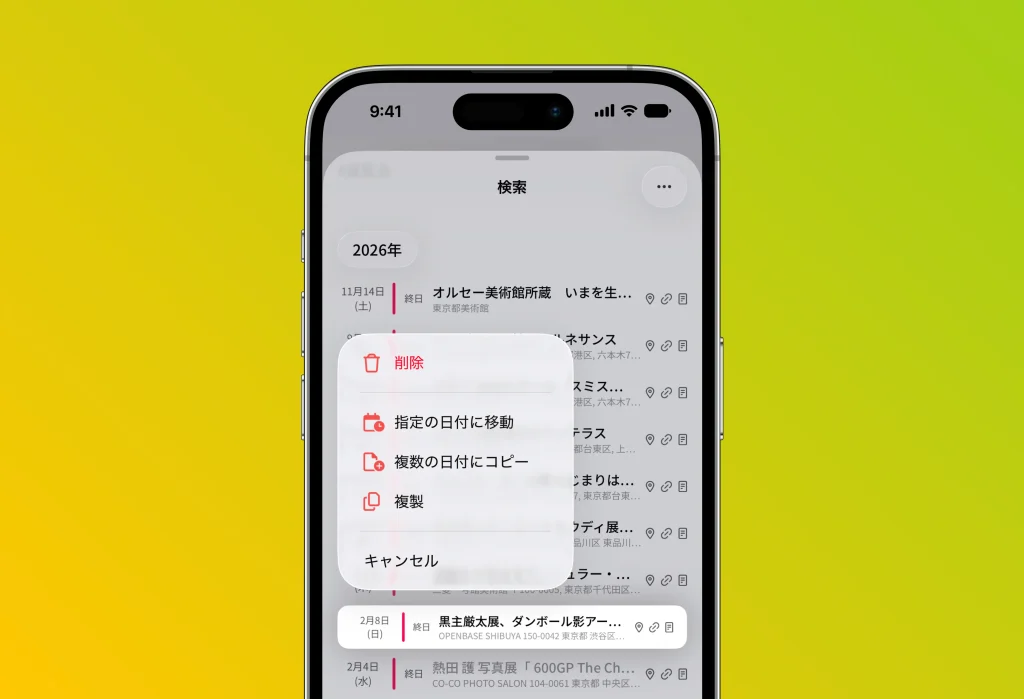
Try long-pressing an event in the list of search results. The following menu appears:
- Move to a specific date: Handle sudden reschedules right from the search results by choosing the new date on the spot.
- Copy to multiple dates: Perfect for duplicating recurring events with the same content, such as “Meeting” or “Gym,” onto other days.
- Duplicate: When you want to create another copy of the same event on the next day or the same day.
- Delete: Great for cleaning up finished projects or canceled plans all at once.
[Example use case] Think of a sports schedule or your favorite artist’s events. Search “#Dodgers” to list them all up, then move a rained-out game to another day, or delete a date you couldn’t get tickets for. No more bouncing back and forth across the calendar screen, you can organize everything quickly right in the list.
2. Prevent slip-ups. Set up to three notifications
“I got a reminder the day before, but when the day actually came I’d completely forgotten…” Sound familiar?
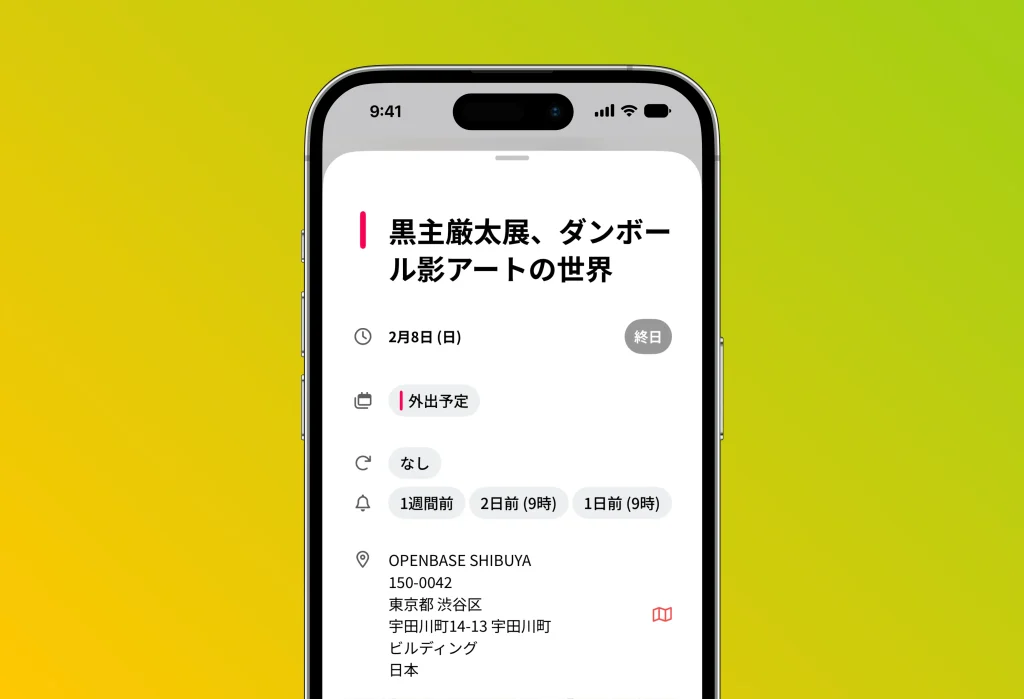
So you never miss an important event, you can now set up to three notifications (alarms) per event. Previously only one was possible, but from ver 1.5 you can do things like:
- [1 week before]: Start your preparations, such as creating materials or making arrangements.
- [2 days before]: Check on your progress and make the final push.
- [1 day before]: Do a final check of what to bring and the meeting time for tomorrow.
This way, you can set up staged reminders. Adding them is easy, just a tap. For events you absolutely cannot forget, be sure to put this three-stage notification setup to work.
3. Customize the “red” of Sundays to your taste
We’ve also added a welcome option for those who care about how their calendar looks.
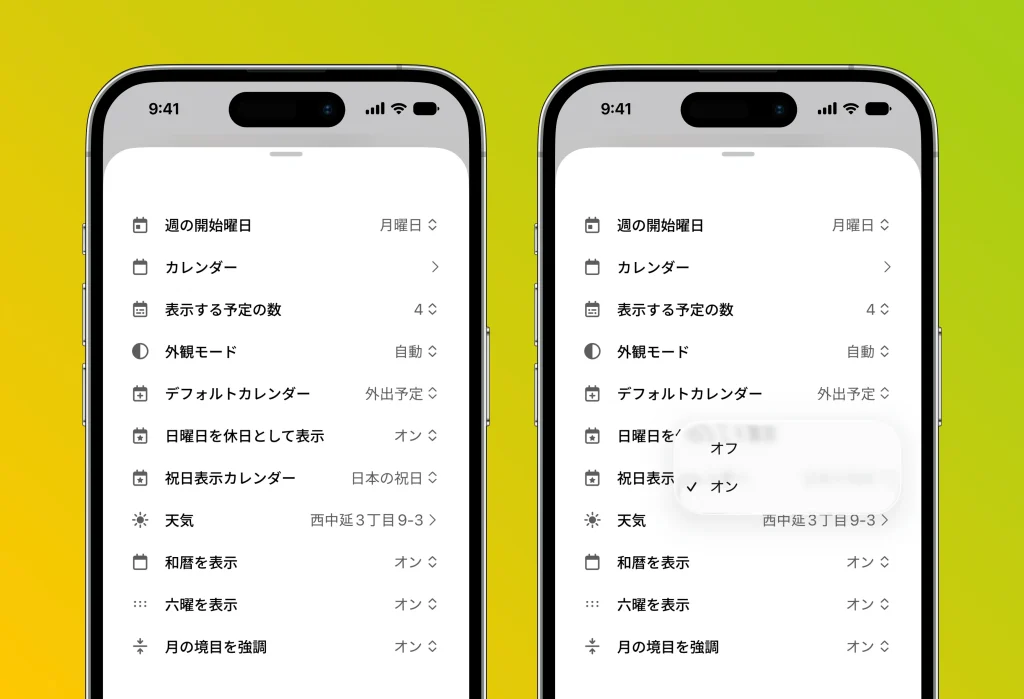
In Japanese calendars, it’s common to show “Sundays in red,” but now you can toggle this on or off with the “Set Sunday as a holiday” option in the settings screen.
- On (default): Sundays turn red, giving a clear contrast between weekdays and weekends.
- Off: Sundays appear in the same color as weekdays. Recommended for those who prefer a minimal, unified look like calendars outside Japan.
This ver 1.5 was developed based on the “I wish it could do this” feedback we received from all of you.
The more you use features like the actions in the search screen, the more you’ll feel how convenient they are.
Be sure to update from the App Store and experience the more comfortable months for yourself.