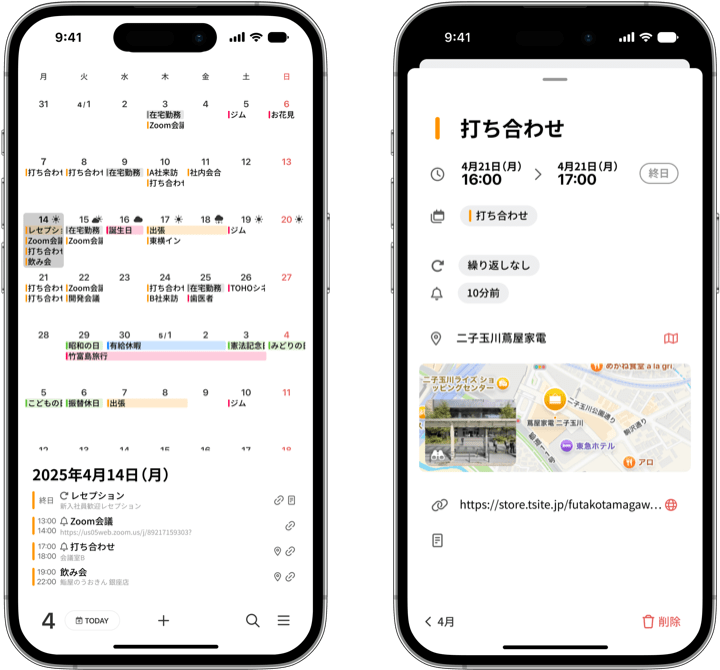
Here’s how to connect the iOS Calendar app with Google Calendar.
This lets you check events from both in “months.”
How to sync Google Calendar with the iOS Calendar
- Open the Settings app
Open the “Settings” app on your iPhone. - Go to Calendar settings
Select “Calendar” and tap “Accounts.” - Add an account
Tap “Add Account” and choose “Google” from the list of services that appears. - Sign in to your Google account
Enter your Google account email address and password to sign in. - Choose what to sync
Check “Calendars” and tap “Save” in the top right. Your Google Calendar will now appear in the iOS Calendar app.
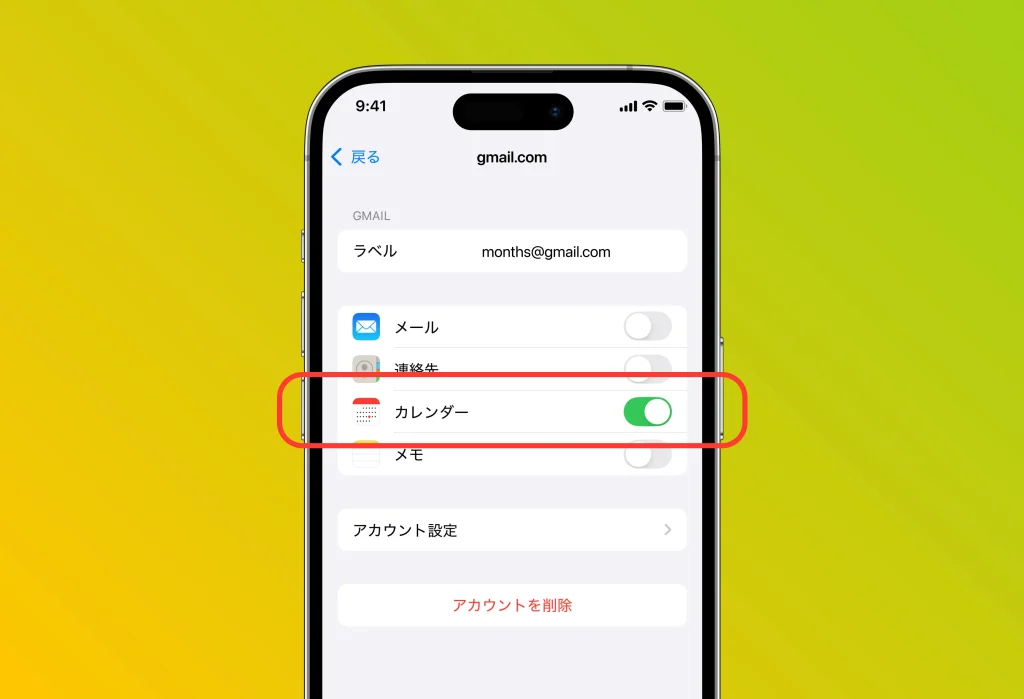
With these steps, you can smoothly connect iOS and Google Calendar, allowing you to view your Google Calendar in “months” as well.