This summer, the FIFA World Cup is finally here. Kicking off on June 11, 2026 and running all the way to the final on July 19, it’s a long battle spanning more than a month. If you’re going to cheer your team on, you’ll want to have the match schedule firmly in hand.
That’s why we’d like to suggest a particular approach: create a single dedicated World Cup calendar and “subscribe” to it .
The entire match schedule, right in your calendar
The Calendar app on iPhone and Mac has a “subscribe” feature that loads and displays a calendar published externally (a calendar URL).
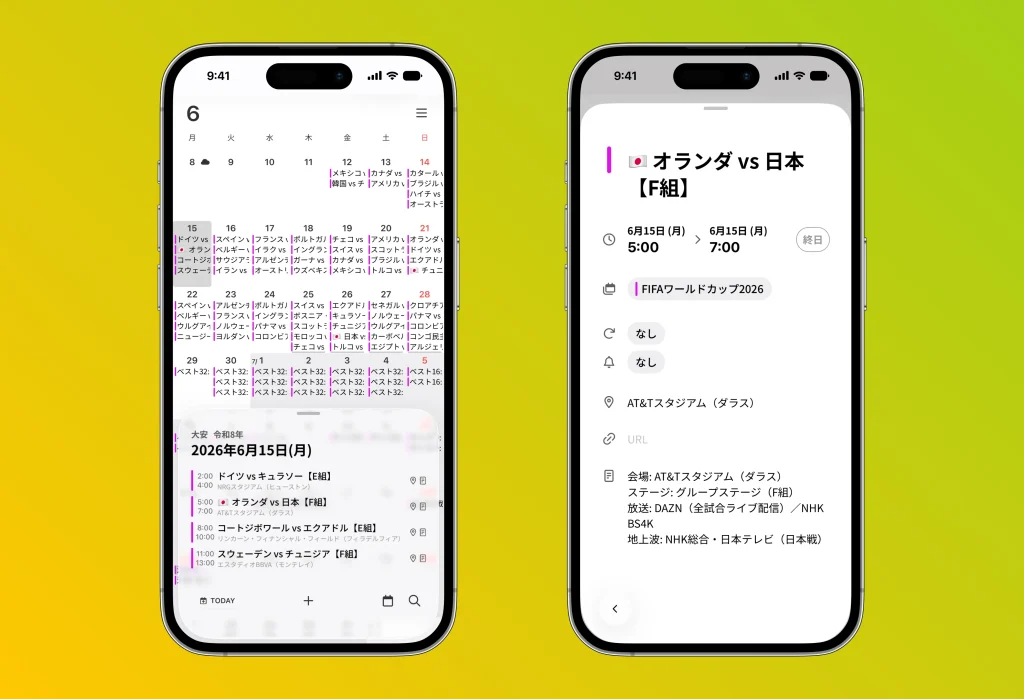
Register a calendar containing every World Cup match once, and the matchups, kickoff times, and venues line up directly in your own calendar. No need to type events in by hand. With 104 matches over 39 days, this alone is remarkably convenient.
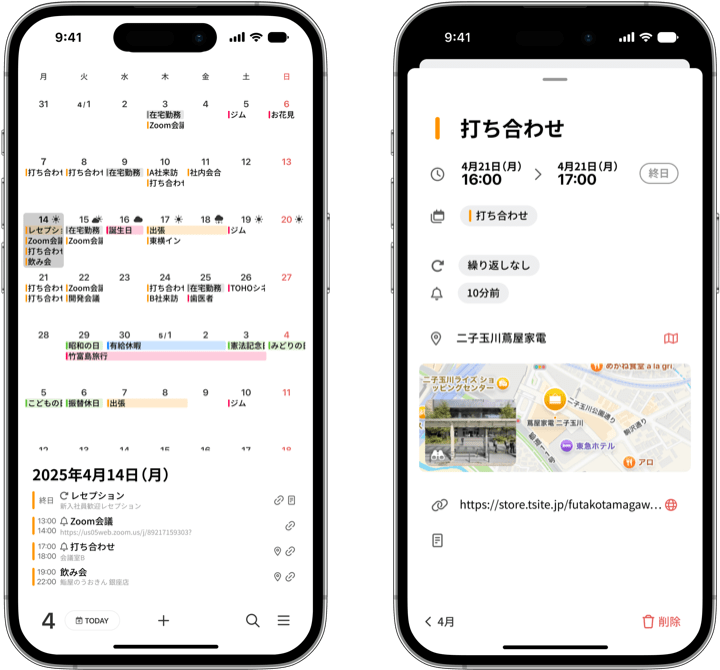
Sync it with months, and you can flip through with vertical scroll and view the whole flow from the opening match to the final as one continuous story. “When’s the next big matchup again?” is answered with a single finger.
Here’s where it gets real. The “knockout stage,” updated automatically too
The biggest feature of this calendar is that its contents update automatically .
First, the match results. Each time a match ends, the score and outcome are reflected in the calendar. You won’t have to hunt through the news for “How did yesterday’s match go?”, just open your calendar and the record is right there. As the tournament progresses, your own personal viewing log builds up.
And the other is the knockout-stage matchups . The World Cup has one tricky aspect: the opponents in the knockout stage aren’t decided before it begins. The top teams from each group, plus the best-performing third-place teams, advance to the knockout stage, and the bracket takes shape as “Group winner vs. another group’s third-place team,” so until the group stage ends, you don’t know who you’ll face. With an ordinary calendar, you’d have to watch the results and manually rewrite “Quarterfinal: ◯◯ vs △△.”
Handling this updating is AI (Claude Cowork) .
Claude Cowork has a scheduling feature that automatically runs tasks at set times. Using this, the AI runs automatically at a fixed time, reads that day’s match results, and writes the outcomes into the calendar. It even judges, from the group-stage results, “this team advanced → their next opponent is here,” and updates the knockout-stage matchups as well.
Rather than a person checking every day and fixing things by hand, the AI updates it for you every night. Without doing anything, you’ll see results etched into the calendar and the bracket “growing.” Each time the team you support advances, the next matchup is quietly written in. Opening your calendar becomes something to look forward to.
Make the tournament more your own
The World Cup is fun just to watch. But once you bring the whole tournament into your own calendar and watch it update as teams advance, it becomes far more “your own.”
This summer, why not let the World Cup live inside months? Beyond the vertical scroll, a long story leading up to the final is waiting.
To try it out — how to “subscribe” to the calendar
Here is the link to the World Cup calendar.https://lab.uuuu.to/worldcup/2026.ics
If you’re reading this article on your phone, tapping the following link will open the subscription screen directly.webcal://lab.uuuu.to/worldcup/2026.ics
Whichever one you register, the match results and the knockout-stage matchups will update automatically from then on.
There’s nothing you need to do.
On iPhone / iPad
The easiest way is to tap the webcal:// link above. The subscription screen opens, and you just press “Add” to finish.
To register it manually, follow these steps.
Open “Settings” → “Apps” → “Calendar” → “Accounts”
Choose “Add Account” → “Other” → “Add Subscribed Calendar”
Paste the URL (https://lab.uuuu.to/worldcup/2026.ics) and tap “Next” → “Save”
It will now appear in the standard Calendar. Since months syncs with this calendar, it will line up on the months screen as well.
On Mac
Open Calendar.app, then from the menu bar choose “File” → “New Calendar Subscription…”
Paste the URL (https://lab.uuuu.to/worldcup/2026.ics) and click “Subscribe”
Choose the auto-refresh frequency (daily, hourly, etc.) and click “OK”
* Clicking the webcal:// link opens the same subscription screen on Mac too.
One quick tip
A subscribed calendar can’t be edited on your device (you just wait for it to update). That’s because the results and matchups are updated automatically behind the scenes. In fact, “it stays up to date on its own without you touching it” is the biggest advantage of this approach.
If you can’t find it displayed in months, check whether this calendar is checked in your screen’s display settings.